ShopWoodmans.com Multiple Saved Lists!
Saving items to a list is great way to save time finding items you buy frequently. ShopWoodmans.com now features multiple saved lists to make it easy to organize those frequently purchased items.
Do you have items you purchase every week? Do you have items you only buy once in awhile? Would you like a list for special occasions like Thanksgiving dinner, or for special diets like Gluten-Free? ShopWoodmans.com multiple saved list feature makes all this possible.
Learn more below…
Step 1: Viewing your lists
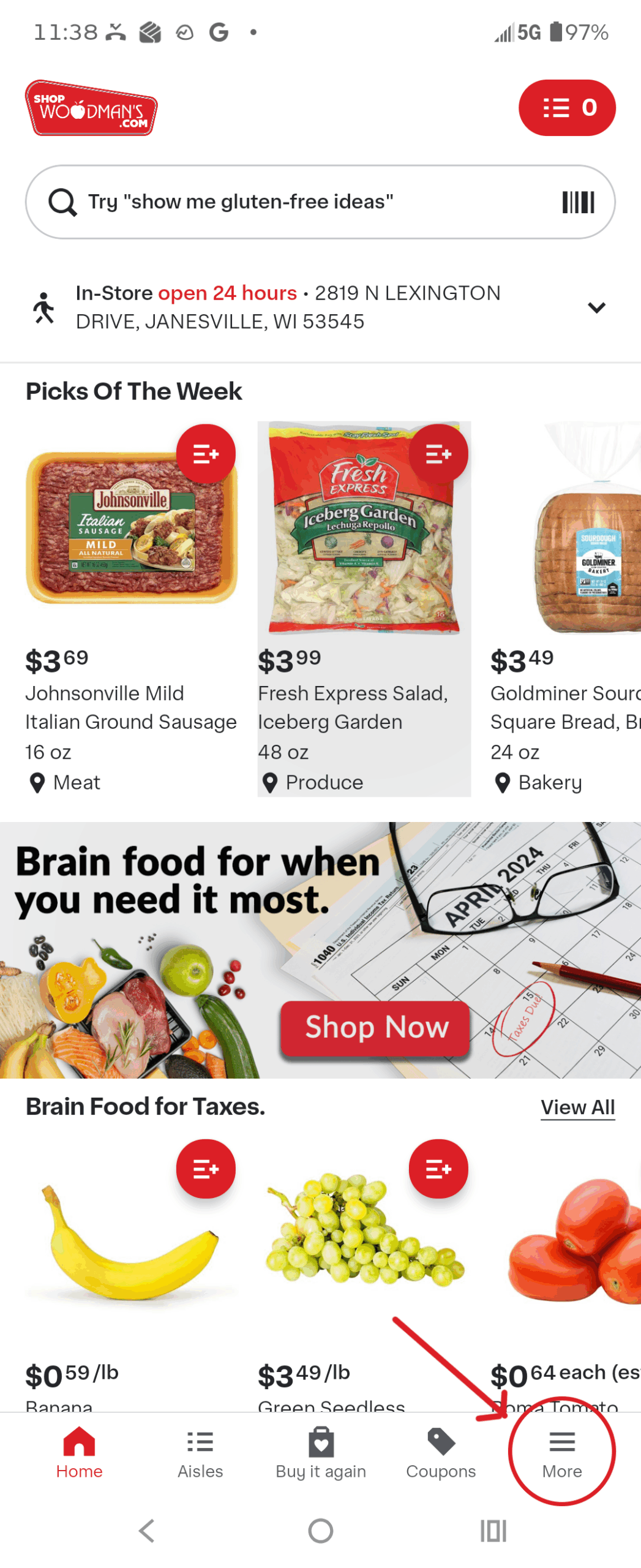
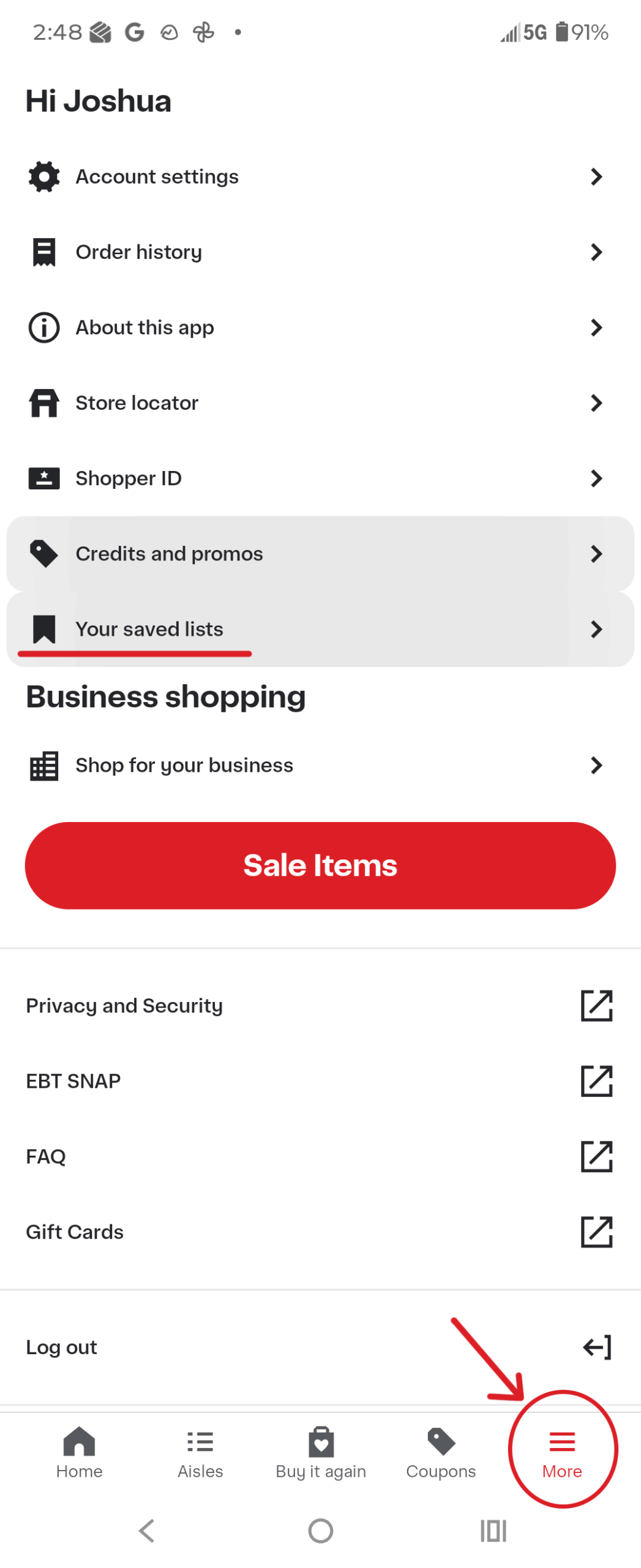
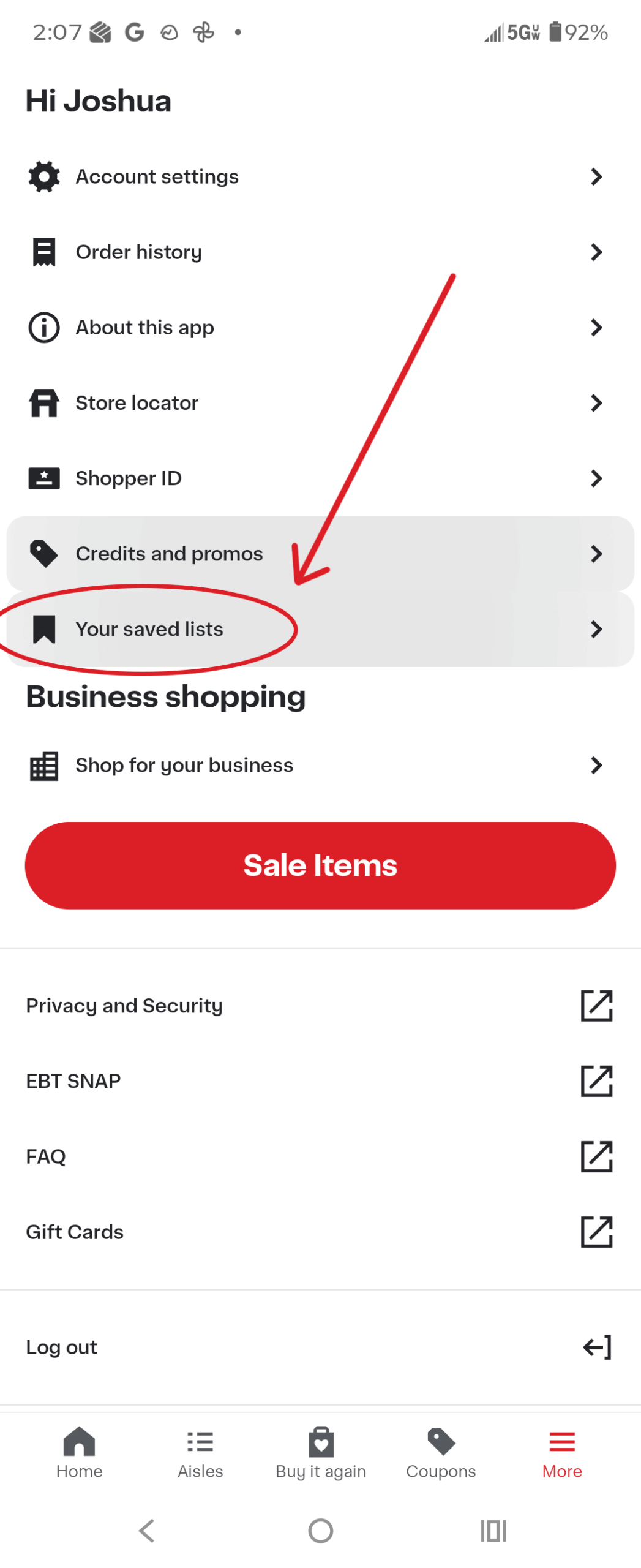
After you’ve logged into ShopWoodmans.com, look to the bottom of the screen where you’ll find the More button.
Tap the More button to view a menu that contains information and settings related to your account. Once on this screen, tap Your Saved Lists.
Step 2: Creating a new shopping list
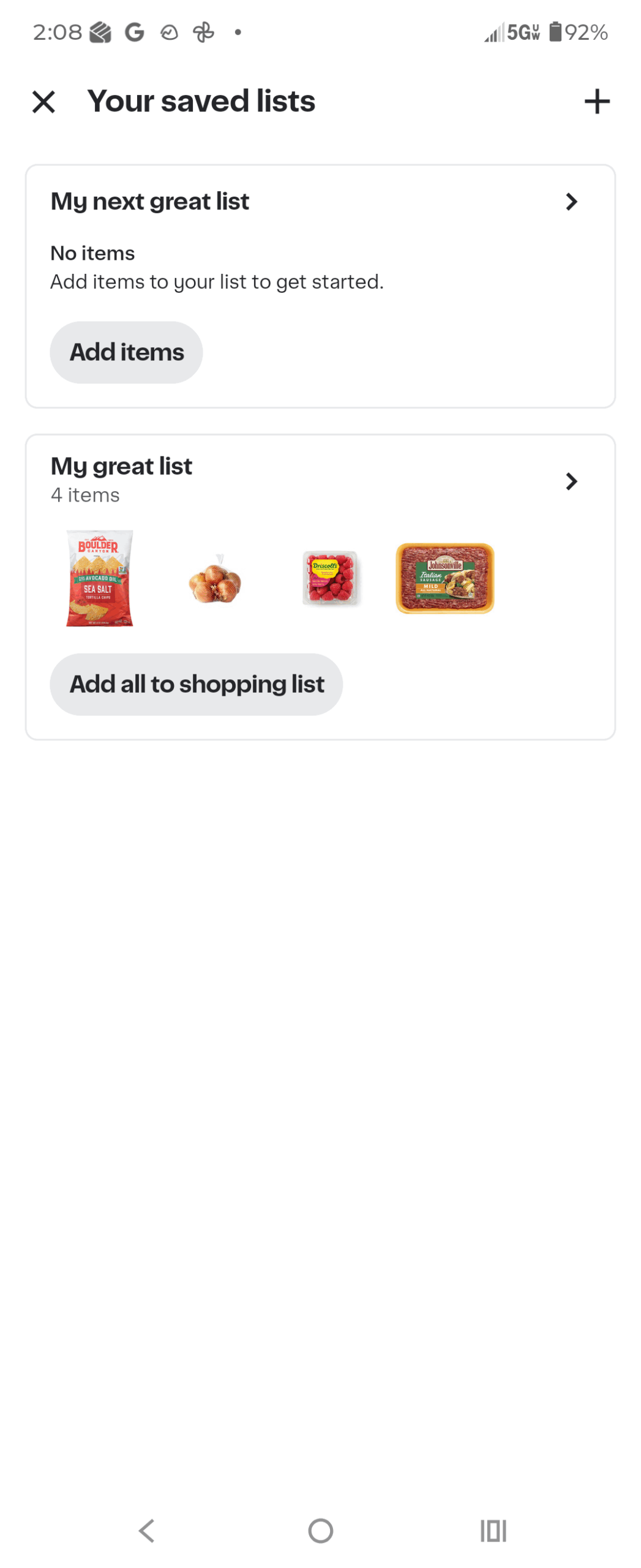
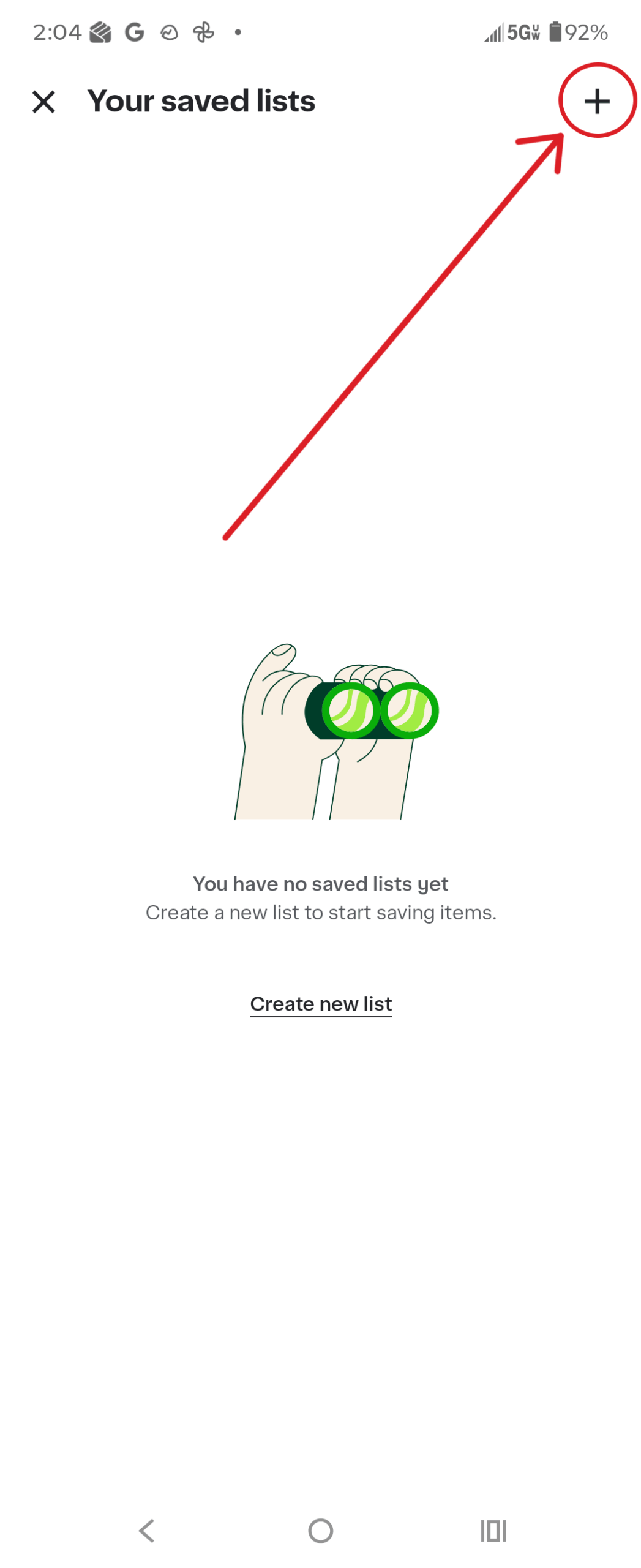
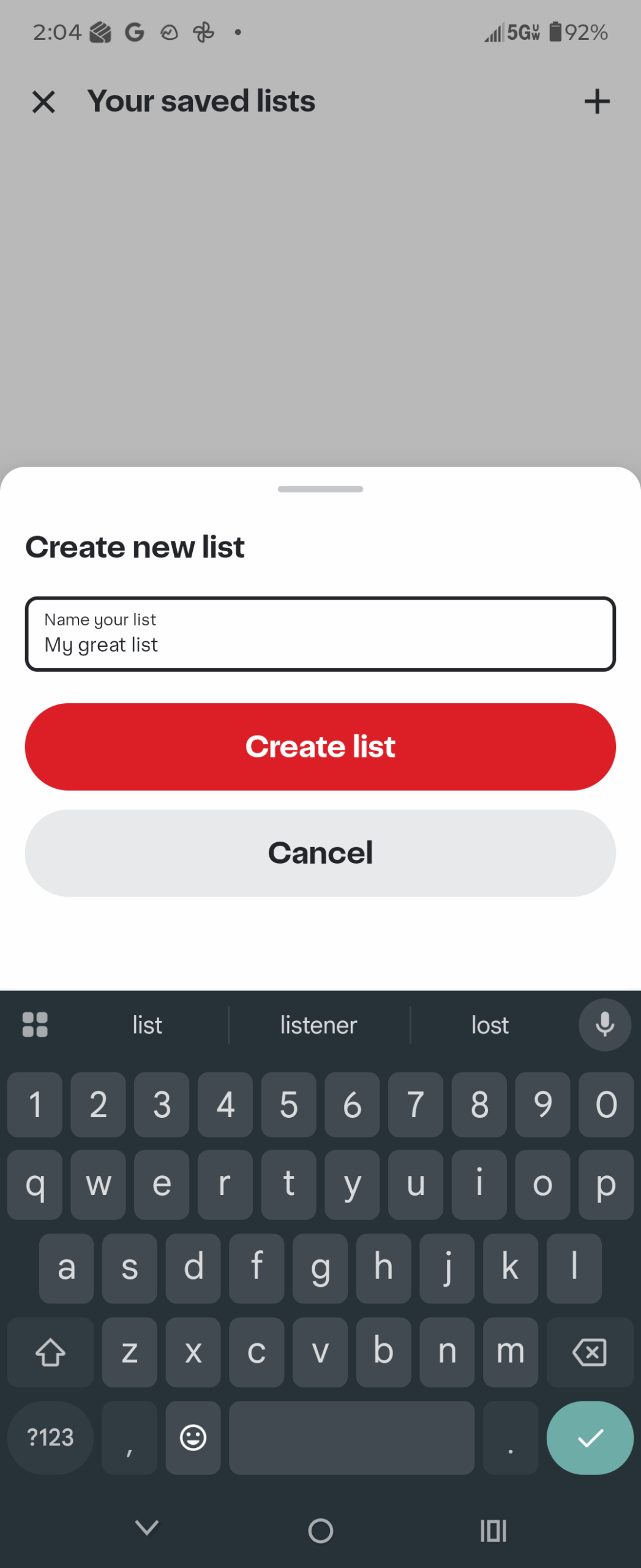
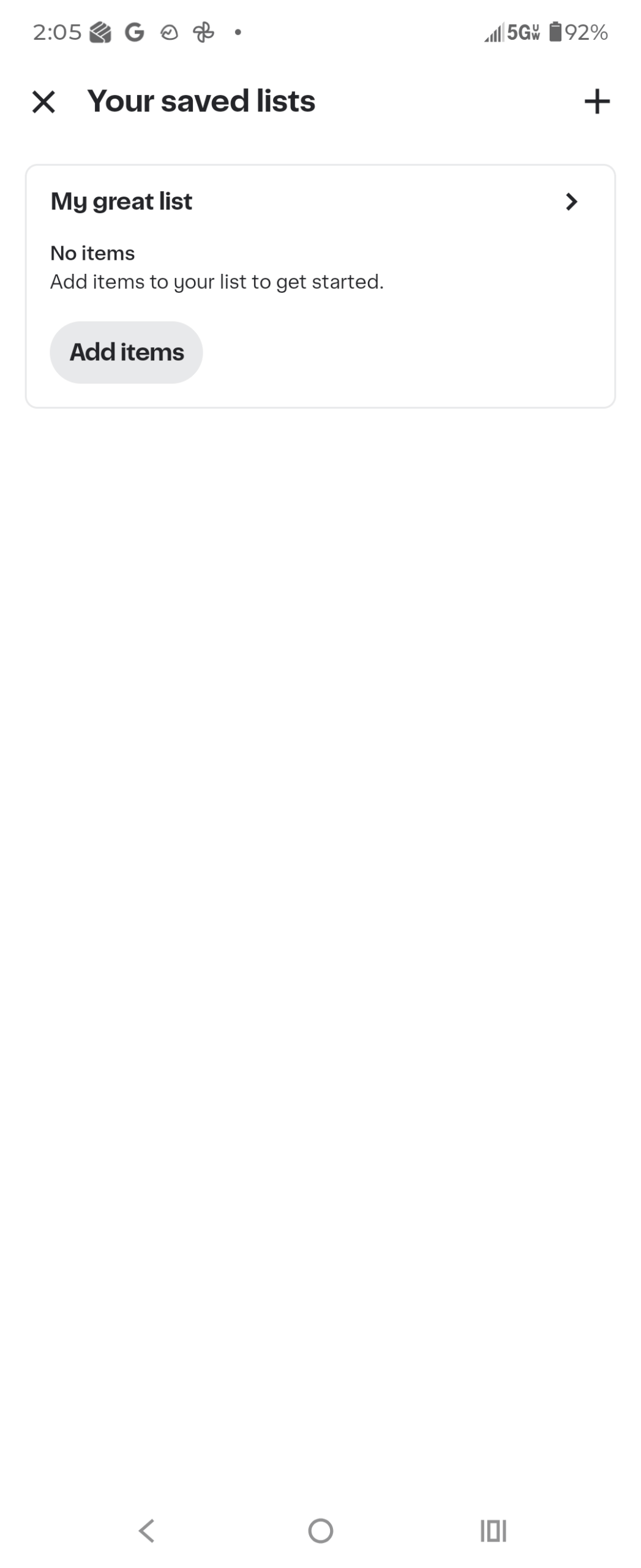
After you’ve tapped Your Saved Lists, you’ll come to a screen where you can see any list you’ve already created. If you have not used this feature before, this area will be blank. To create your first list, tap the Plus icon in the upper right corner. It’ll ask you to name your new saved list.
Step 3: Add items to your shopping lists
Once you’ve created your new list, you’re able to add items to it. Adding items to your saved list is a bit different than adding them to your shopping list or cart. To add items to one of your saved lists, you’ll have to add it from the item screen.
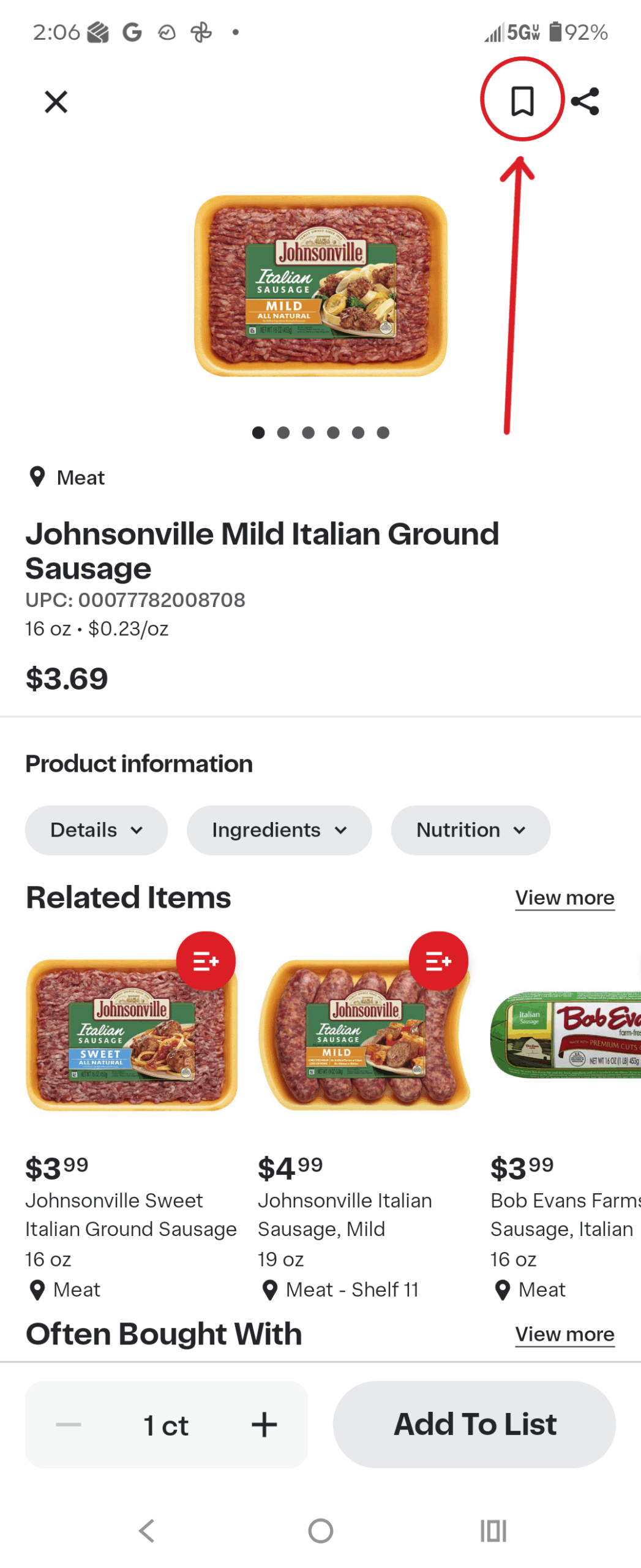
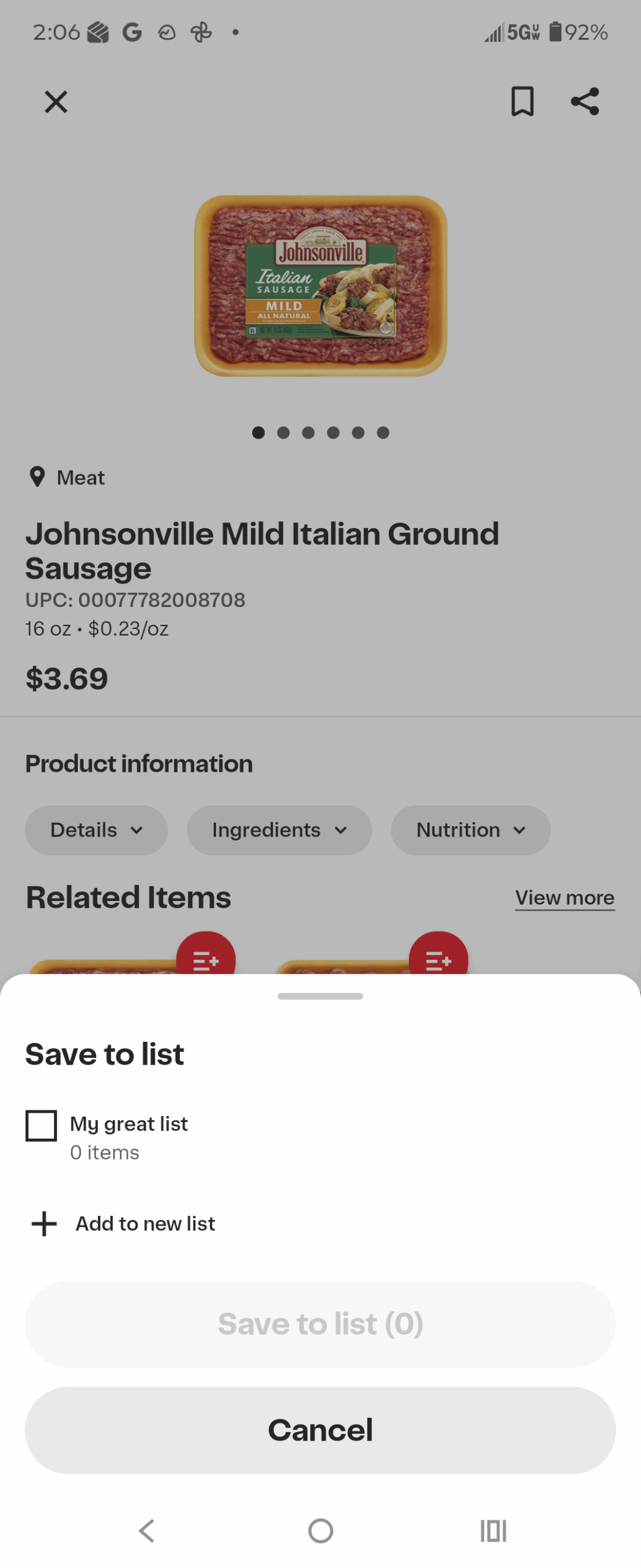
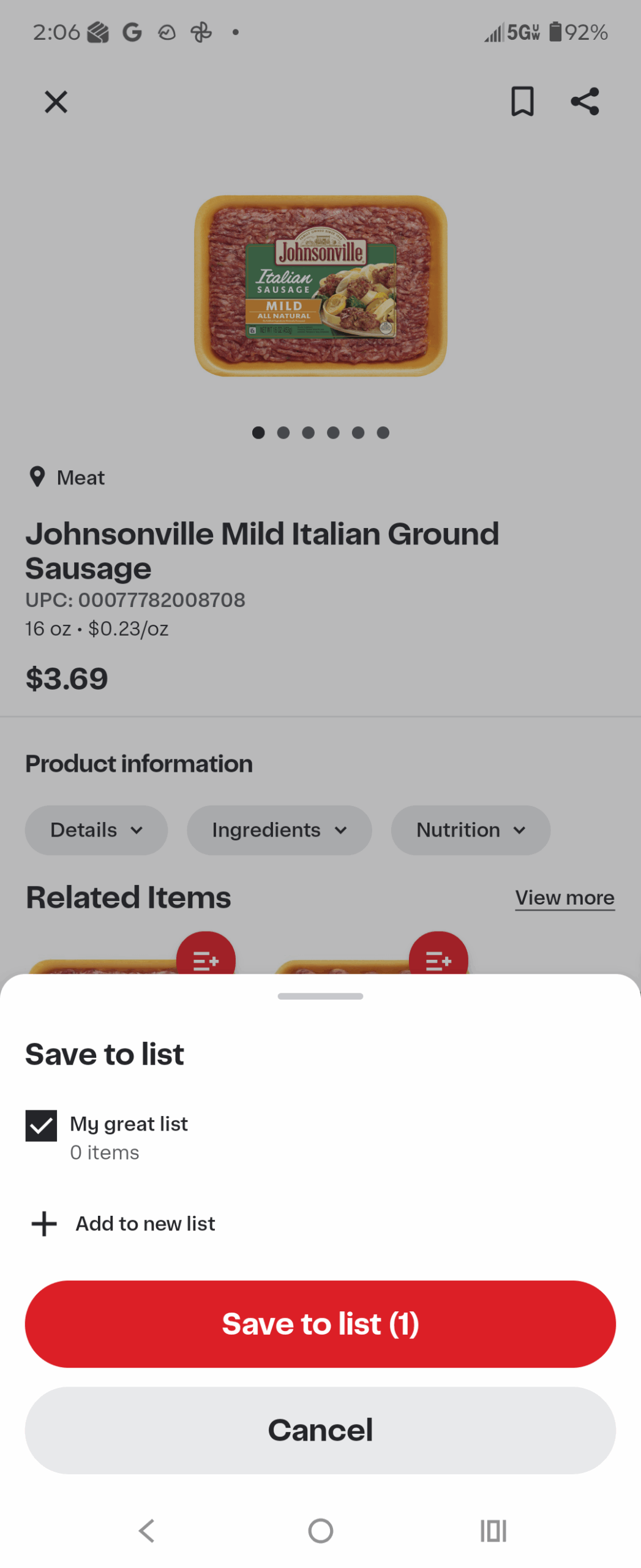
Once you have found an item on ShopWoodmans.com you’d like to add to a saved list, tap the bookmark icon in the upper right corner of the screen. You’ll be given the option to add it to any of your existing lists, or you can create a new list. Once you’ve selected the list you’d like to add the item to, tap save to list.
Step 4: Add items from a list to your basket to purchase
Now that you’ve added some items to your saved list, here is how you can return to those lists to add those items to your shopping list or cart to purchase them.
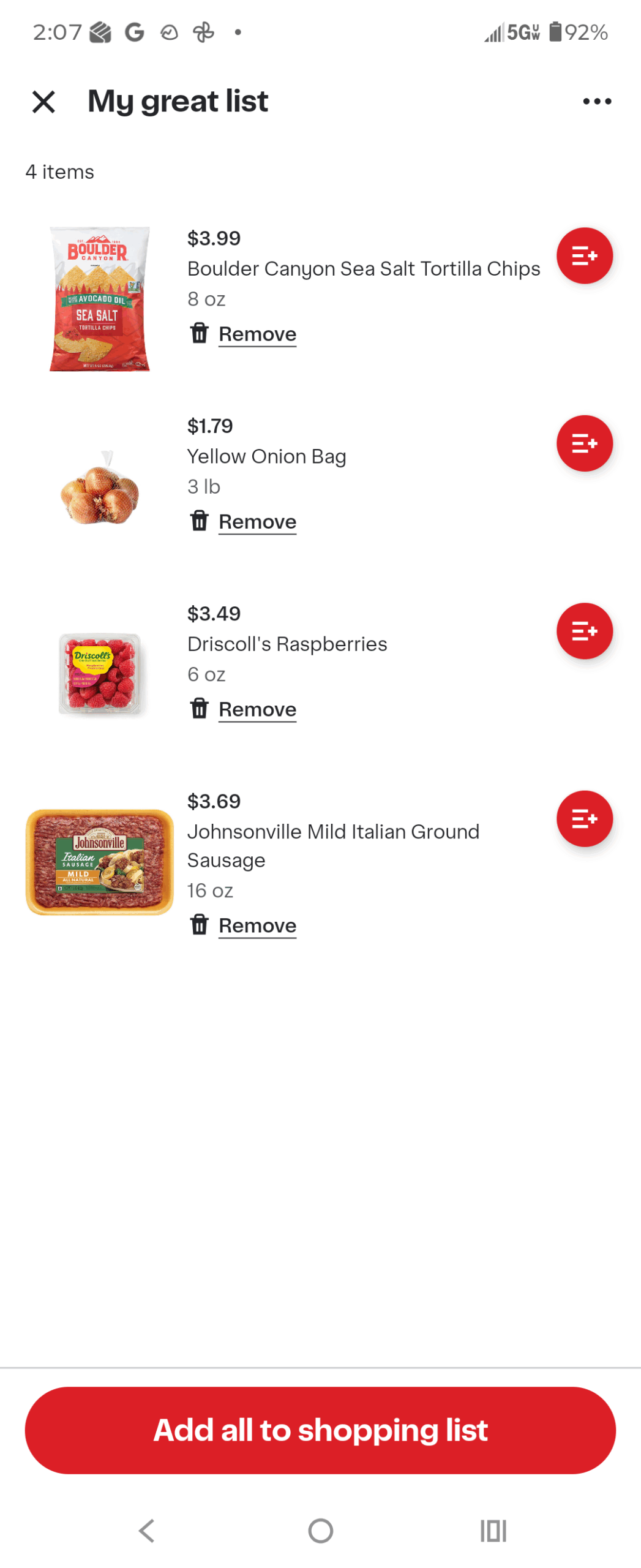
Tap the More button in the lower right of the screen, then tap Your Saved Lists. Once you see your lists, tap the list you want to view. On that list, you can tap the red button to the right of an individual item to add it to your basket. Or, tap the large Add all items to shopping list to add them to your shopping list or cart.